

You may find this error in Windows 10, Windows Server 2008, Windows Server 2008 R2, Windows Server 2012, Windows Server 2012 R2, Windows Server 2016, Windows Server 2019, Windows server 2022, Exchange 2013, Exchange 2016 (and earlier versions)
You will experience the connection issues in Outlook or in the 3rd party applications while connecting your Exchange server with the following message in the event log.
TLS 1.0 connection request was received from a remote client application, but none of the cipher suites supported by the client application are supported by the server. The TLS connection request has failed.
What is the cause? :
This may happen because the TLS encryption is not enabled on your server. It may cause an issue to connect applications via HTTPS and TLS encryption fail on the connections.
What is the Solution?
You will need to enable TLS encryption on your server. Please follow Accuweb > Enable TLS article to enable TLS 1.2 on your windows server. Once you are done with this, you should be able to connect the connection with HTTPS and TLS encryption.
Full copy of the article below
unshamefully copied from: https://manage.accuwebhosting.com/knowledgebase/3578/How-to-enable-TLS-1-2-on-Windows-2012-Server.html
Please refer to the following steps to enable TLS 1.2 on Windows Server 2012.
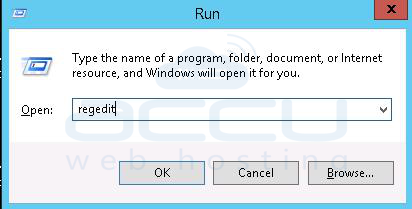
- At first, go to start and open the registry editor. Go to Start and Run. In the Run, type regedit and click on the OK button.
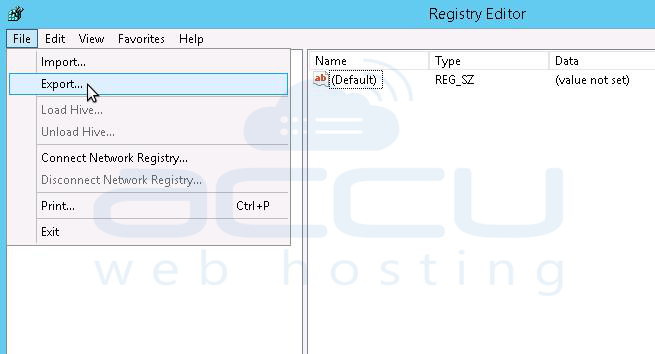
2. Backup the registry file. Click on File and then on Export. Select your location to save the registry file. It is always recommended to have the backup file of your registry file so in case there is an issue, you can import the file to make the file as it was earlier.
3. Now, browse to the following registry key.
HKEY_LOCAL_MACHINE\SYSTEM\CurrentControlSet\Control\SecurityProviders\SCHANNEL\Protocols4. Right-click on the Protocols folder, select New then Key using the drop-down. It will create a new folder and rename this folder to TLS 1.2.
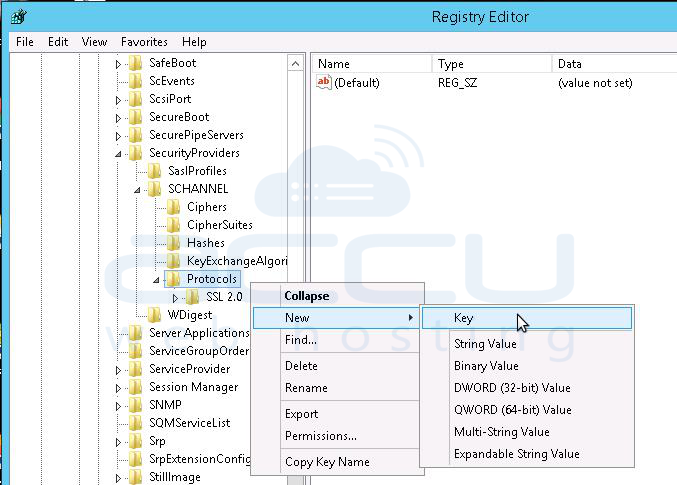
5. Right-click on key TLS 1.2 and add two new keys Inside it and rename the two new keys as below.
- Client
- Server
6. Right-click on Client key, select New then select DWORD (32-bit) Value from the drop-down, and rename the DWORD to DisabledByDefault.
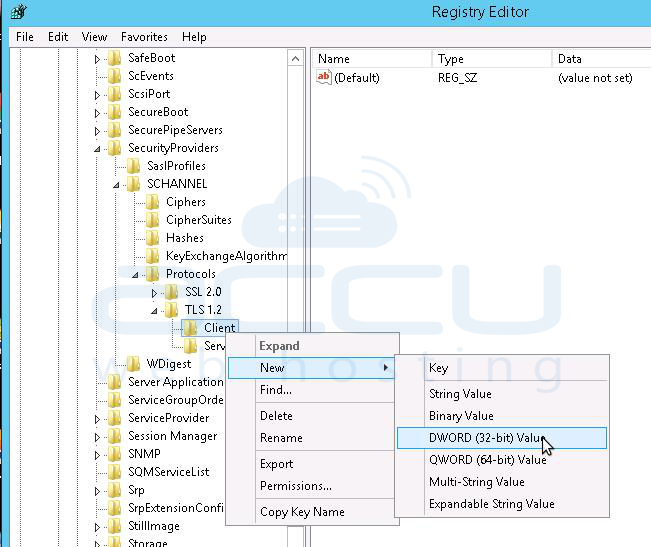
7. Right-click on DisabledByDefault and select Modify from the drop-down and make sure the Value data field is set to 0 and the Base is Hexadecimal. Click on the OK button.
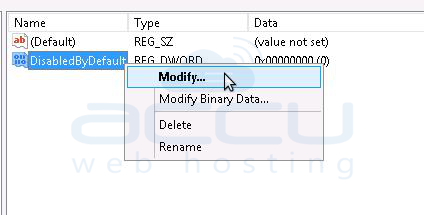
8. Let’s create another DWORD for the Client key as you did in Step 7 and rename the second DWORD to Enabled.
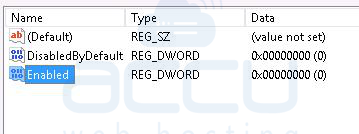
9. Right-click on Enabled and select Modify option from drop-down and make sure the Value data field is set to 1 and the Base is Hexadecimal. Click on the OK button.
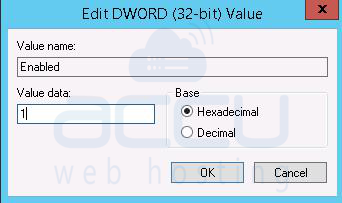
10. For the Server key, repeat steps 7 to 9 (create two DWORDs, DisabledByDefault and Enabled, and their values Inside the Server key).
11. Finally, Reboot the server and TLS 1.2 is now enabled on your server.
Transport Layer Security (TLS) registry settings at microsoft:
https://docs.microsoft.com/en-us/windows-server/security/tls/tls-registry-settings#tls-12
https://docs.microsoft.com/en-us/previous-versions/windows/it-pro/windows-server-2012-R2-and-2012/dn786418(v=ws.11)?redirectedfrom=MSDN#tls-12